Written once, used on every job
Care saved on a Library item comes along automatically the next time you use it. Walter can read a maker’s care sheet and fill it in for you.

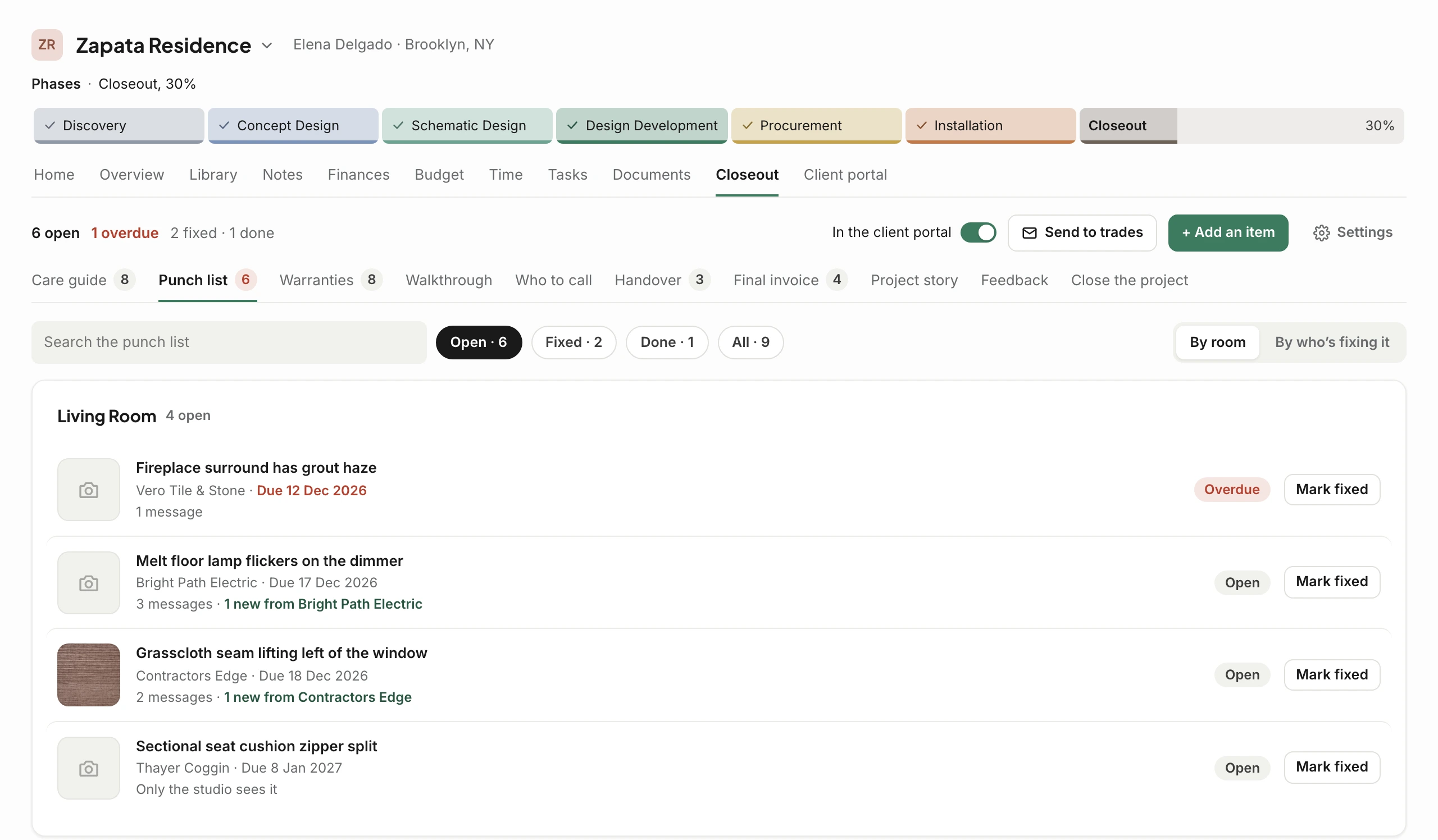
The install is done, but the project isn’t. Closeout is a tab on every project that takes you from the last delivery to a client who knows how to live in their home: the walkthrough, the punch list, a care guide, warranties, who to call, the handover and the final invoice, all in one place.
Trusted by the studios doing the work
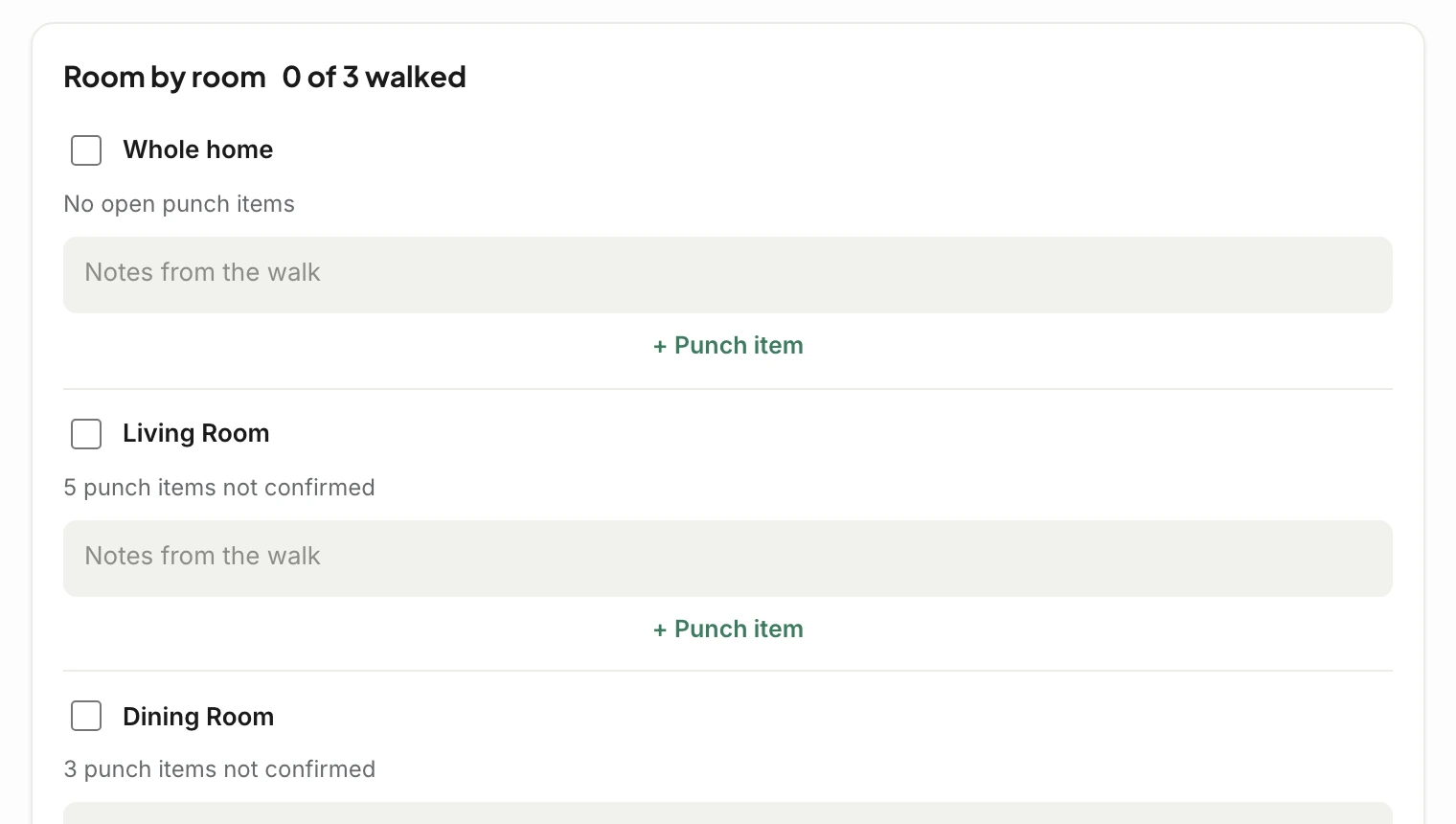
Set the date and who’s coming, and the walkthrough goes on the calendar. Walk each room, write down what you see, and turn anything still outstanding into a punch item on the spot. When you’re done, your client signs off in their portal by typing their name.
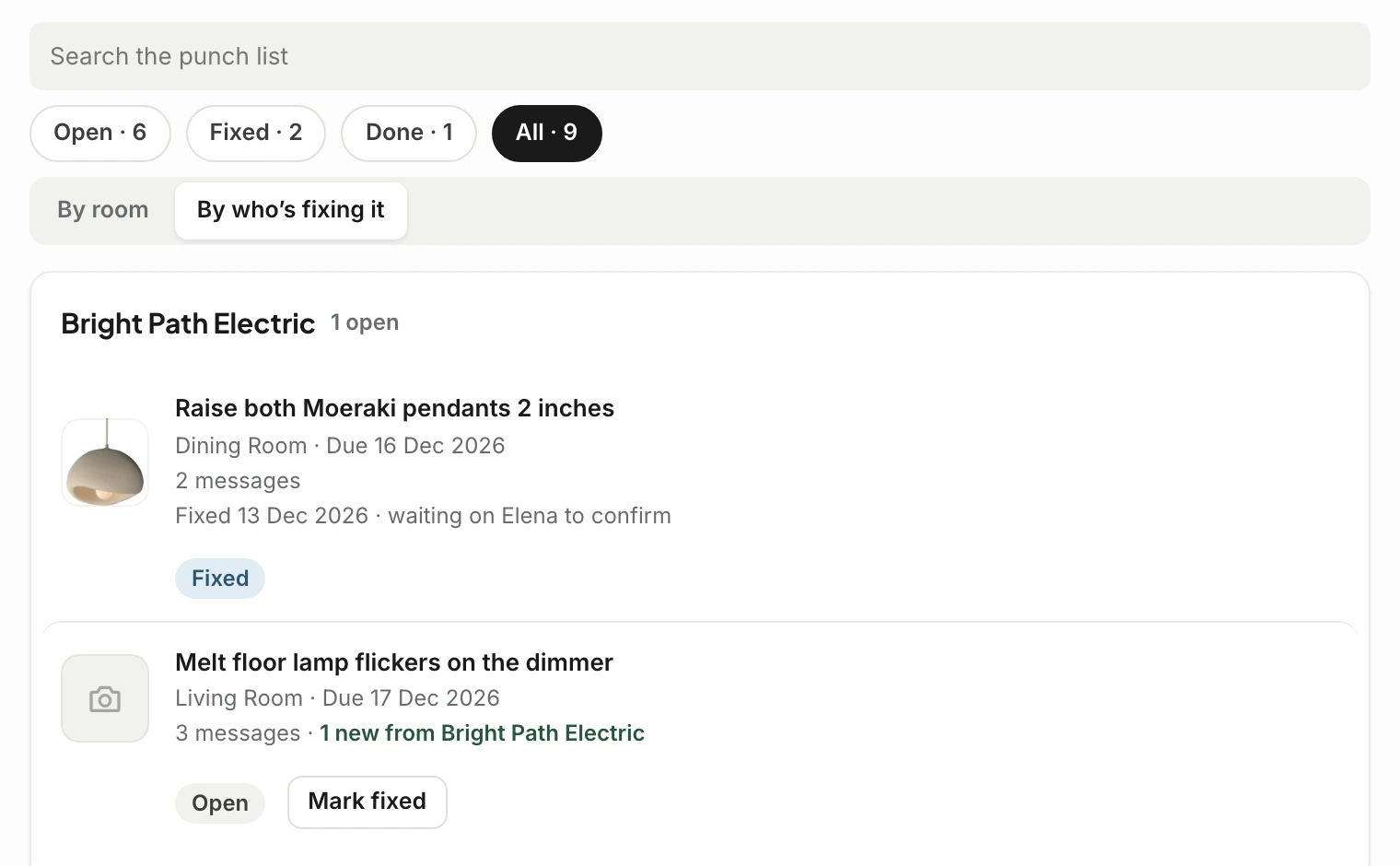
Log each item by room, with photos and a target date, and assign it to the trade who’s fixing it. Send to trades and each one hears only about their own items. Their replies land in their room in Comms, so the conversation stays with the project instead of in your texts.
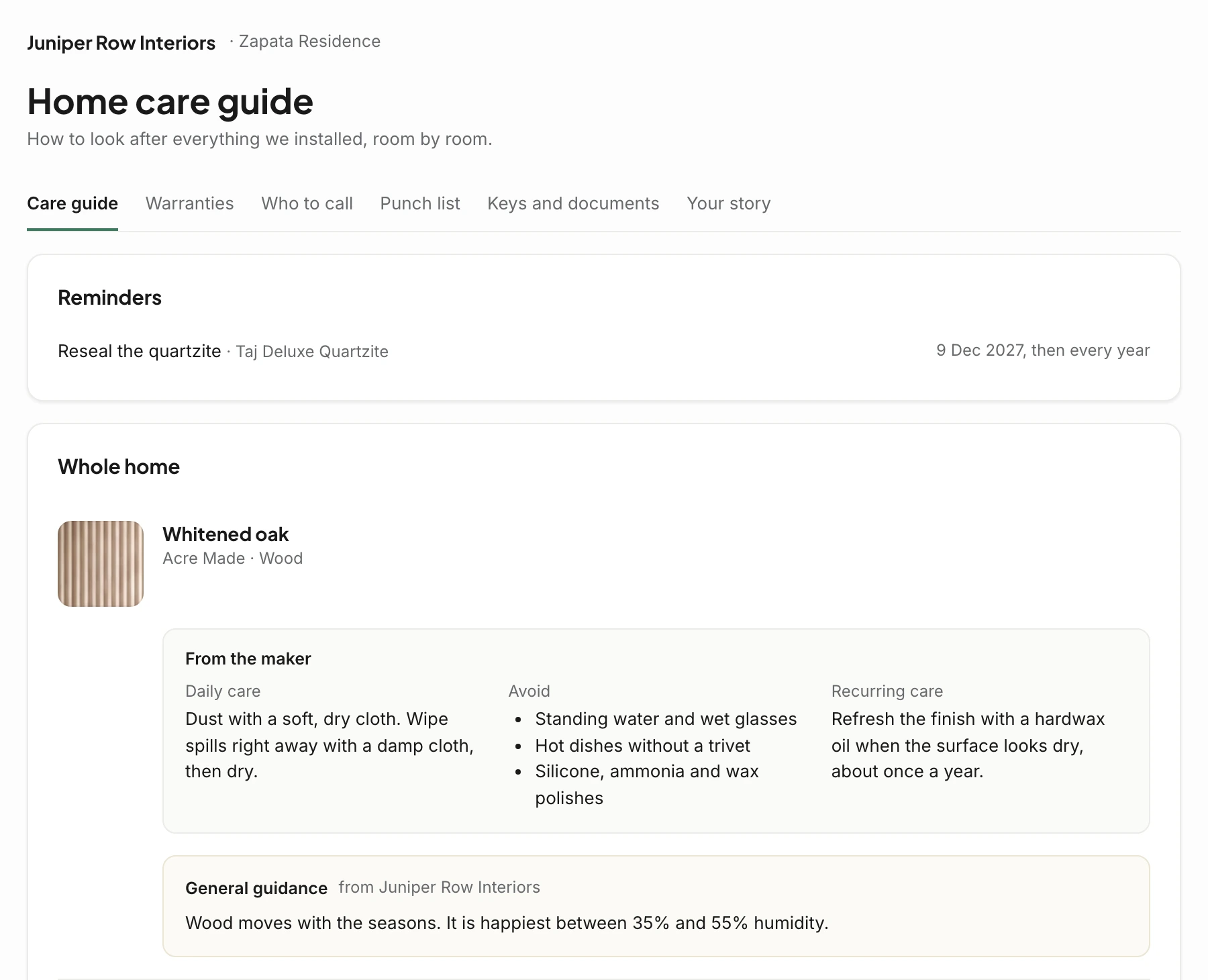
Walter drafts a care guide room by room from the products on your orders and the materials on the project. Each entry has the maker’s care, what to avoid and what to do each year, plus your own general guidance. You check each entry before it goes anywhere, and only the ones you mark “In the guide” reach your client.
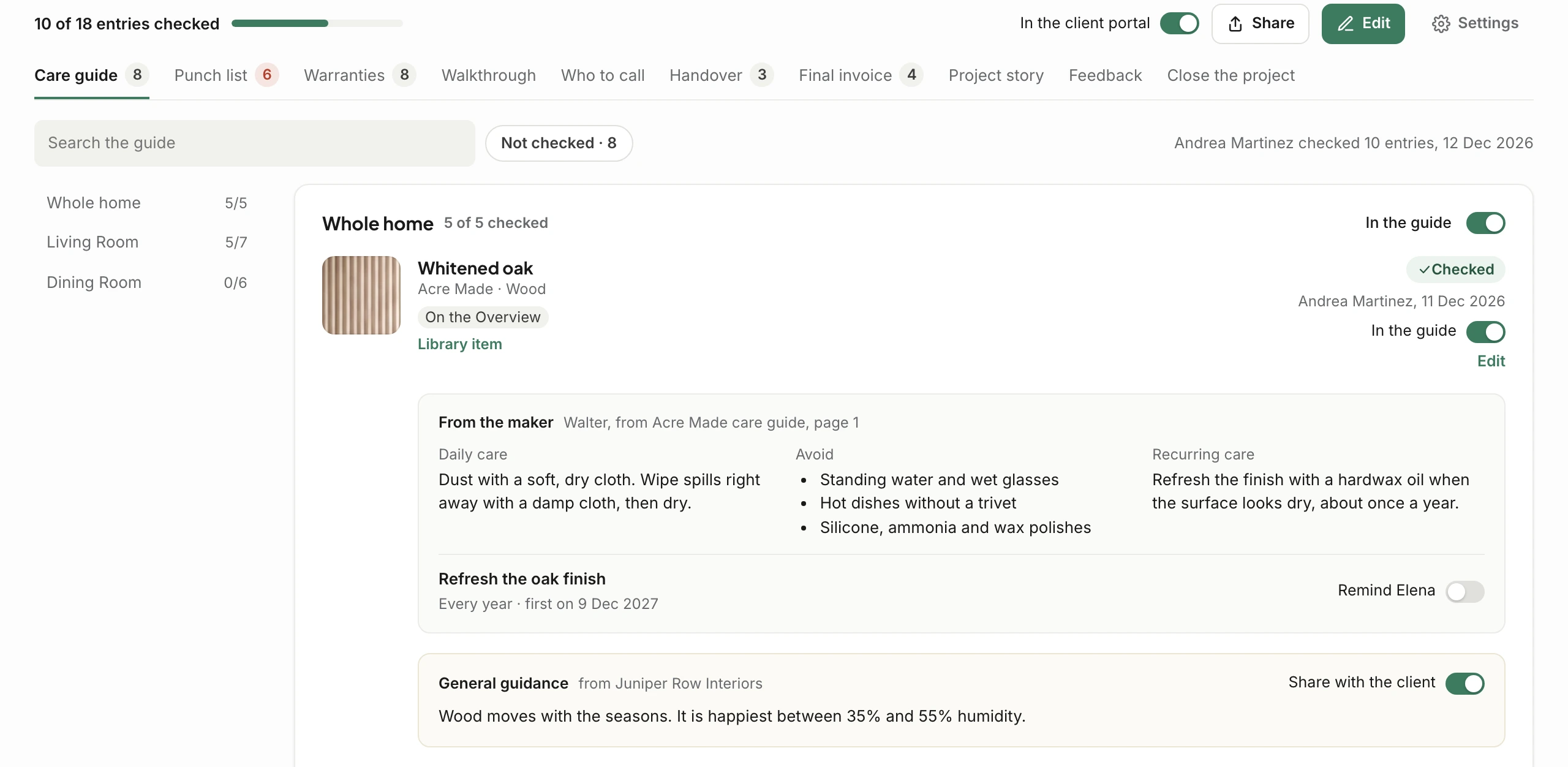
Care saved on a Library item comes along automatically the next time you use it. Walter can read a maker’s care sheet and fill it in for you.
Reseal the stone every year. Rotate the cushions. Turn a reminder on and your client hears about it when it’s due.
Every entry shows who checked it and when. Anything you haven’t checked stays out of the PDF and the portal.
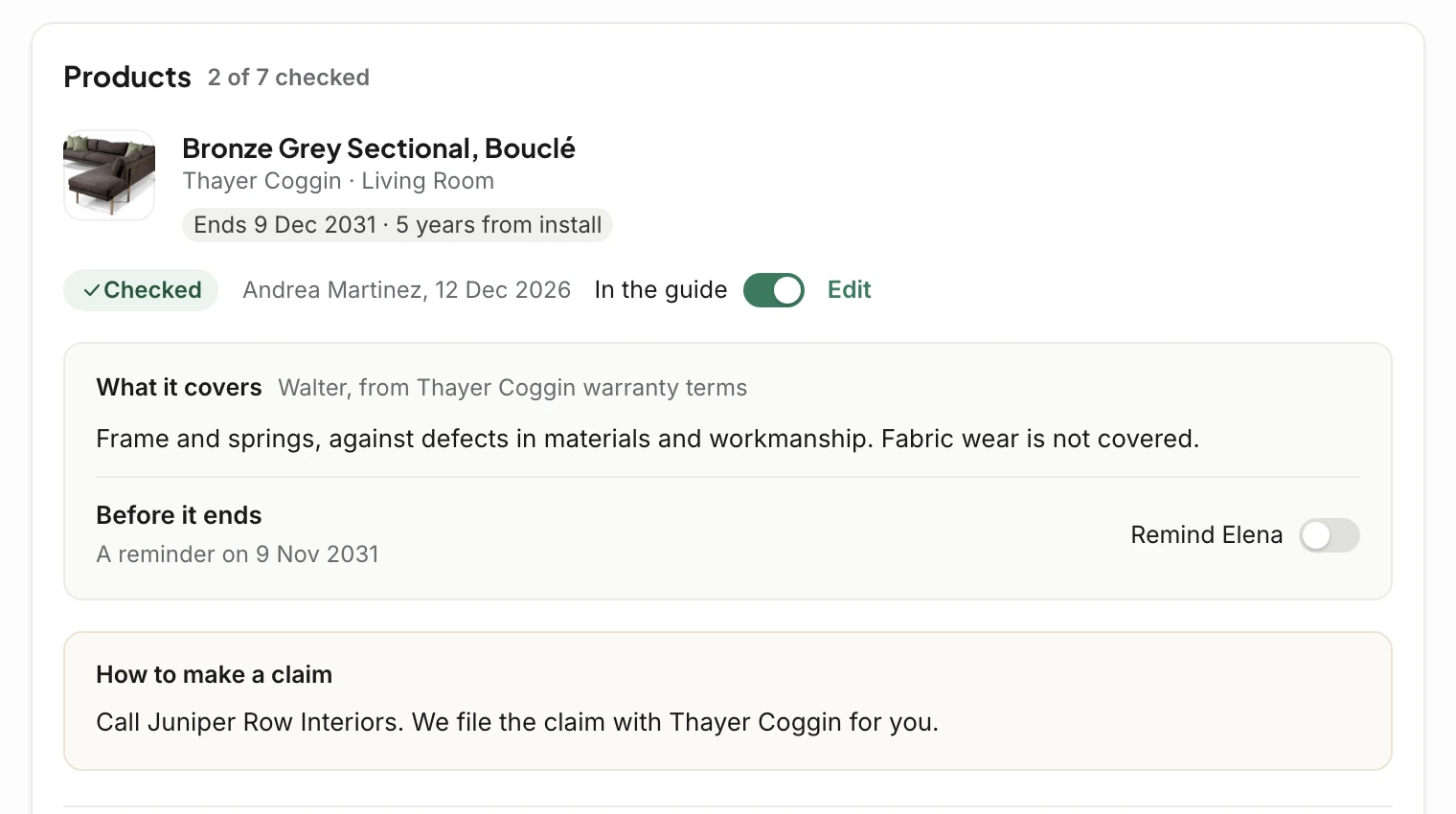
One row for every installed product, drawn from your purchase orders, and one for each trade’s workmanship. Each shows what’s covered, when it ends or “Lifetime,” and how to make a claim. Turn on a reminder and your client hears from you before the cover runs out.
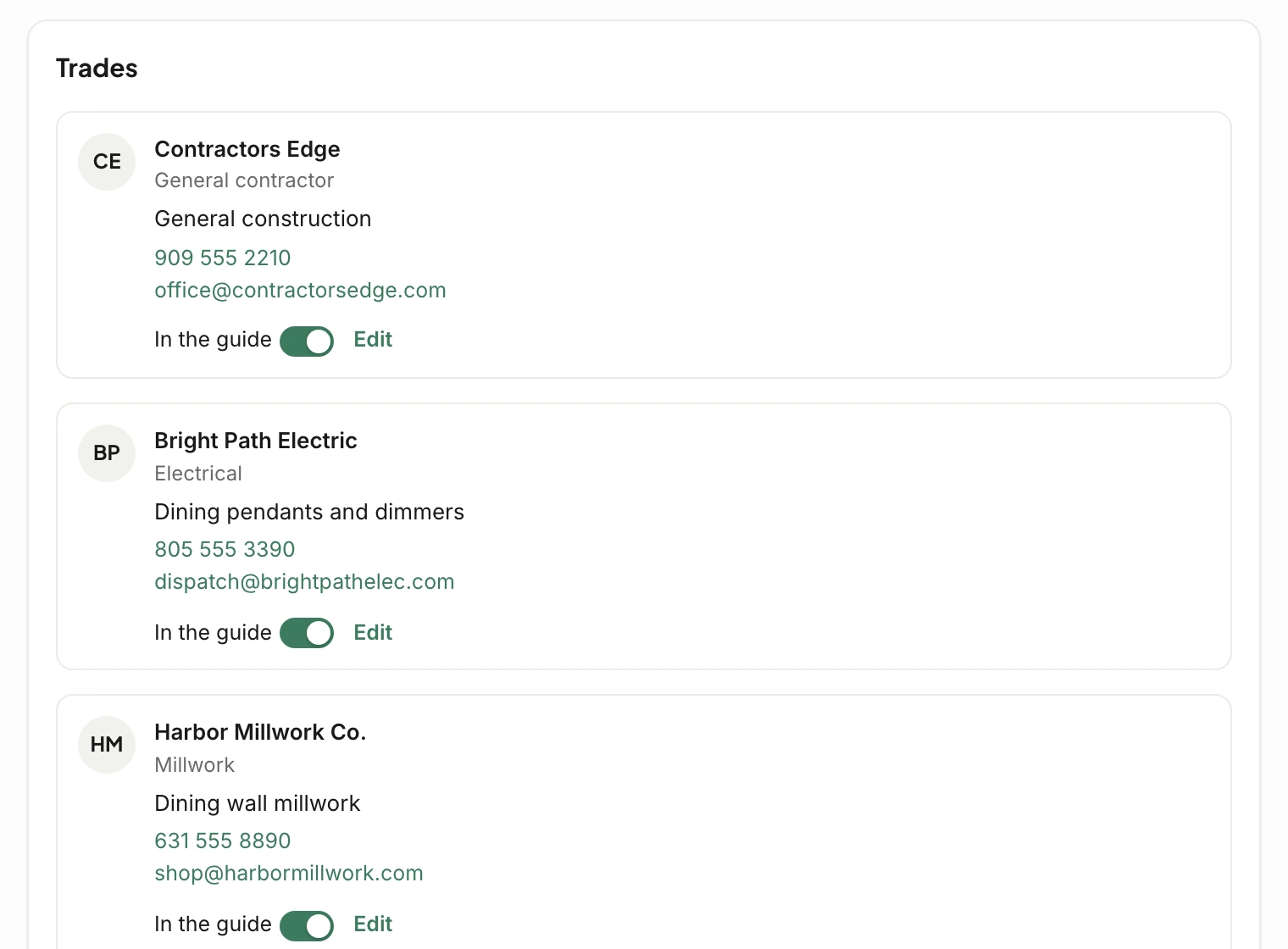
Your team, the trades and the makers behind the products, each with their role, phone, email and what to call them about. Walter drafts it from the project, and you choose who goes in the guide. Your client stops texting you about the dimmer.
Record the keys, remotes, manuals and paint colors you hand over, and add the documents your client should keep. Access codes stay visible only to the people you allow.
See what’s left to bill: unbilled time, reimbursable expenses, open invoices and change orders. Retainers are never applied on their own, so you decide where every dollar goes.
Walter writes the project’s story chapter by chapter, using only what the project actually recorded. Share it with your client as a keepsake, or keep it for your portfolio.
Ask your client a few short questions about how it went, right from their portal, while the project is still fresh.
Share the home care guide with warranties and who to call, the signed walkthrough and the project story, by email or download. Every share is logged.
A checklist shows what’s still open across every tab. When it’s done, close the project. Your client’s portal stays available as the record of their home.
Once you share something, your client finds a new Your home section in their portal: the care guide, warranties, who to call, handover documents, the punch list, the signed walkthrough, the project story and your questions. It only appears once there’s something to show, and only what you’ve chosen to share is in it.
Choose which parts your studio uses in Settings, and the phase when Walter starts drafting. Once a project reaches it, Walter drafts the warranties, the who-to-call list and the handover documents for you to review. Your permissions decide who sees the money, the access codes and the client switches. Anything a role can’t use is removed, never grayed out.
No. Nothing reaches your client until you share it. Each part has its own In the client portal switch, and only the care guide entries and warranties you've checked go out.
Walter drafts it from the products on your purchase orders and the materials on the project, using the care saved on each Library item and the maker's care sheet. You check every entry before it goes anywhere.
Assign each item to the trade fixing it and send. Each trade hears only about their own items, and their replies post to their room in Comms, so the project keeps the whole conversation.
Not on its own. The final invoice shows what's left to bill and what the retainer could cover, and nothing is applied until you decide.
Yes. Turn each part on or off for your studio in Settings, and choose the phase when Walter starts drafting.
A checklist shows anything still open across the tabs first. Once it's closed, your client's portal stays available as the record of their home.
We’ll open Closeout on a real project and walk from the punch list to the care guide your client keeps.